Lists, Cut List & Sawing Plan
The bottom bar brings together all generated lists. It has four tabs: Parts list, Costs, Cut list and Drawing. The bar can be resized in height and collapsed (more room for the 3D view).
Parts list
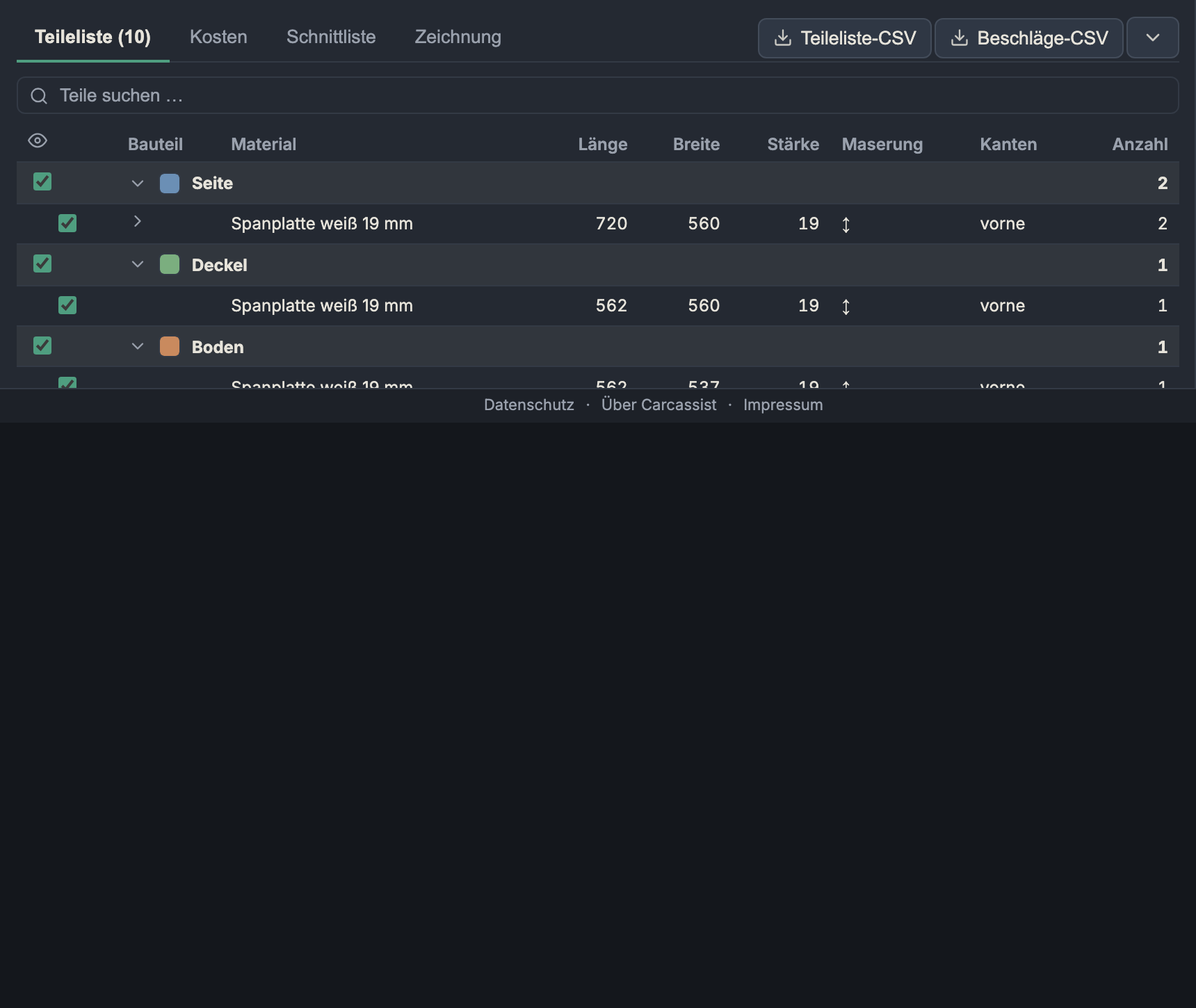
The bill of materials for all cut parts, grouped hierarchically.
- Grouping: by default by role (side, bottom, top panel, back panel, door, drawer front …; with a clamp-box top also rib, sacrificial strip, apron and bottom skin). With several carcasses you can switch to by carcass (then carcass first, roles within it).
- Columns: part, material, length, width, thickness, grain (↕ lengthwise, ↔ crosswise, – don't care), edges (which edges are edge-banded) and quantity. Identical formats are combined into a single row (with a count); use the arrow to expand the individual parts.
- Search: free-text search over name, material, dimensions and individual-part labels (e.g. "Drawer 2" finds the second drawer).
- Visibility (eye column): Every row/group can be shown and hidden — this hides the parts in sync in 3D (handy for looking inside). The app counts hidden parts in the 3D overlay; "show all" resets.
- Colour swatch: Pick a colour per role — the same colour is used by the 3D option Colourise.
Hardware & machining
Below the parts list are two further tables (where applicable):
- Hardware = purchasable parts, one row per specification: dowel Ø…, Domino …, biscuit #…, screws, concealed hinges, shelf supports. This lets you order the hardware directly.
- Machining = machining steps (not hardware): System 32 holes, a clamp-box top's dog holes (per diameter, through), grooves, box joints. (A groove is deliberately not hardware.)
CSV export: Parts-list CSV and Hardware CSV via the buttons at top right.
Order list (PDF) prints a compact list for the panel supplier – no drawings: one table per material with position number (= number of the DXF file), part, length × width × thickness, quantity, grain and edges, plus per material the part count, area and sheet count. Choose "Save as PDF" in the print dialog. The parts list itself can also be grouped by material.
Pre-order check
Above the parts list sits the check: green when it finds nothing, otherwise a list of errors (red) and warnings (orange), each with its carcass and part.
| Check | Kind | What it checks |
|---|---|---|
| Compartments | error | Fronts, drawers, doors and sliding doors fit their compartment (as in the carcass form). |
| Machining | error | In every part: two operations cutting into each other (a dowel into a groove, say), a blind bore breaking through, an operation reaching past the edge. Intended pairs (PV shank and housing, grooves meeting, through holes for dogs and handles) don't count. |
| Hole pattern | warning | Left-out holes are grid positions. If the grid changes (another depth or length) they point at other holes – check the hole map. |
| Top skin | warning | Largest clear span between two ribs against what the skin thickness carries: at most 1 mm deflection under a 100 kg point load over 200 mm width. |
| Shelves | warning | Sag under 100 kg/m² at most 1/300 of the span. |
| Tipping | warning / error | A free-standing carcass (no worktop), height from the floor (plinth included) against its depth and its width: a warning above twice as tall, an error ("not stable") above four times as tall – a light push then tips it, and it may only be built fixed in place. |
| Sheet size | warning | A part does not fit the sheet entered for its material (along the grain for grained material) – enter a larger format or make it from two pieces. Also catches typos. |
| Levelling feet: pad | error / note | Error when the gap to the floor is smaller than pad + insert plate (the pad doesn't fit under it); note when the pad is thinner than the bolt. |
| Levelling feet: stem | error | With a stem length: at the set gap the bolt pushes against the carcass bottom (too long) or no longer fully engages the thread (too short). |
| Levelling feet | error | Only for levelling feet (at the crossings or centred): a key hole finds no carcass bottom – the foot can't be reached from above. |
| Casters | error | Only for the laminated ladder with a rated load per caster: own weight + payload per caster against the rating. |
Board stiffness is estimated: plywood/birch ply 9000 N/mm², MDF 3000, HDF 4000, chipboard 2500; weight with 680 / 750 / 850 / 650 kg/m³. The assumptions are deliberately simple – the check catches gross mistakes, it does not replace an engineer. A green check therefore does not mean the plan is right: check dimensions, drilling patterns, hardware and load capacity yourself before cutting and building; the manufacturers' data takes precedence (see the terms of use).
While building, Carcassist tidies up some things itself: line-boring and shelf-pin holes that would hit a connector, a hinge plate or the back groove are left out; bores from both sides of a divider go at most half the board deep; in sliding-door compartments the front connectors move behind the grooves.
Costs

Panels: one row per material — thickness, parts, area m², edges m (running metres of edge banding), sheets (whole sheets from the nesting), waste % and costs €. Pick the cost basis above the table: whole sheets (sheet count × sheet price – how you pay when you buy the boards and have them nested or saw them yourself) or part area (area × €/m² per piece – how a cut-to-size service at a timber merchant charges, keeping the offcuts). CSV export: Material CSV with both figures.
Banding by decor: running metres per band decor + thickness — the shopping list for edge tape. CSV export: Banding CSV.
Hardware (cost): quantity × €/unit per category — hinge, drawer runner (pair), handle, shelf pin, connector (dowel/cam/…) — plus edge banding (€/m). Set the unit prices under Project → Prices (hardware).
Finally the grand total = panels + hardware + banding.
Sheet count and waste come from the same nesting as the cut-list tab; the nesting settings there (optimal / strip, continuous grain) apply here too.
Cut list (sawing plan / nesting)
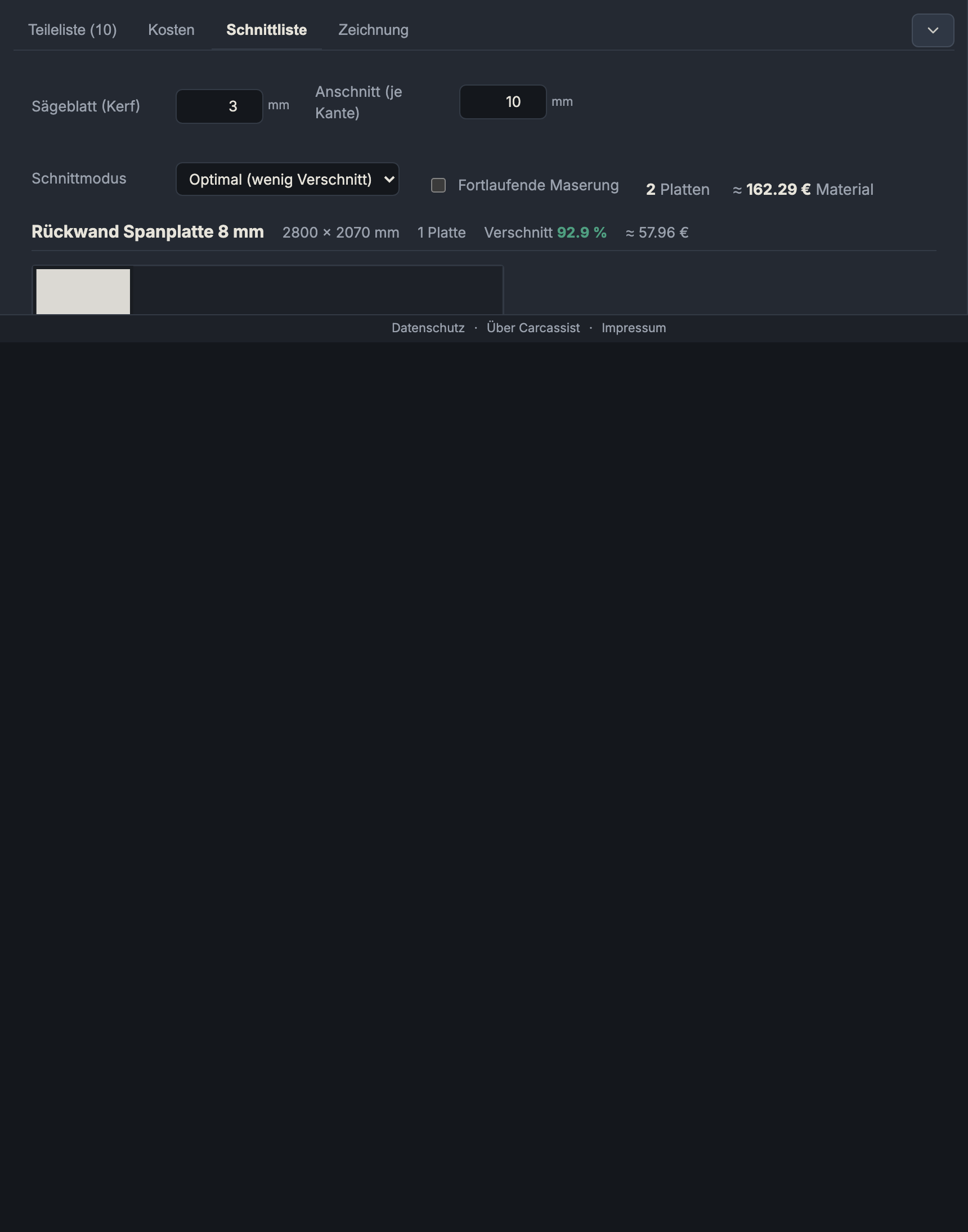
Here all parts are nested onto real sheet formats, separately per material. Each sheet is drawn to scale, with a part label, dimensions and (where there is grain) grain stripes. The controls are at the top:
Saw blade (kerf)
The kerf width of the saw blade (0–10 mm, step 0.1; project default 3 mm). Between two parts this width is lost per cut. The app only accounts for the kerf on cuts between parts — a single part may take up the full usable area.
Trim (per edge)
A clean trimming margin reserved on every side of the sheet (0–50 mm, default 10 mm) before nesting. Usable area = sheet dimension − 2 × trim per axis. Industrial sheets often have an untidy/chipped factory edge — the trim saws it off.
Cutting mode
- Optimal (low waste): A best-of-N optimisation
tries many variants (orderings × orientation × placement heuristic ×
rotate on/off) and keeps the cleanest one. All layouts remain guillotine-
cuttable (continuous edge-to-edge cuts, as a panel/table/plunge saw can
actually perform — interlocking "pinwheel" layouts can't be sawn).
- Pros & cons: best sheet yield, good looks; the cutting pattern is less uniform than with strip cutting.
- Strips (rip): The production method — first rip strips
across the full sheet length, then cross-cut the parts to length from each
strip. Only works if every part fits into a strip; otherwise the app
automatically falls back to the free nest.
- Pros & cons: markedly fewer rip cuts at the panel saw, a cleaner workflow, the leftover pieces are whole strips; tends to produce slightly more waste than "Optimal".
- Strip width (0–2070 mm): forces every strip to this exact width (e.g. the carcass depth as a standard rip). 0/empty = usual/part-based widths.
Continuous grain
- What it does: Cuts the front stack of a carcass as one panel and then rips it apart — so the grain runs continuously across all fronts (drawer fronts/doors).
- When to use it: With solid wood/décor with visible grain, when the fronts should look "from one piece".
- Pros & cons: Elegant continuous grain flow; in the plan the combined panel is framed with a dashed outline, the internal kerf gaps are the ripping cuts. It ties the fronts together by position (a little less freedom when nesting). Only has an effect on materials with grain.
Grain display
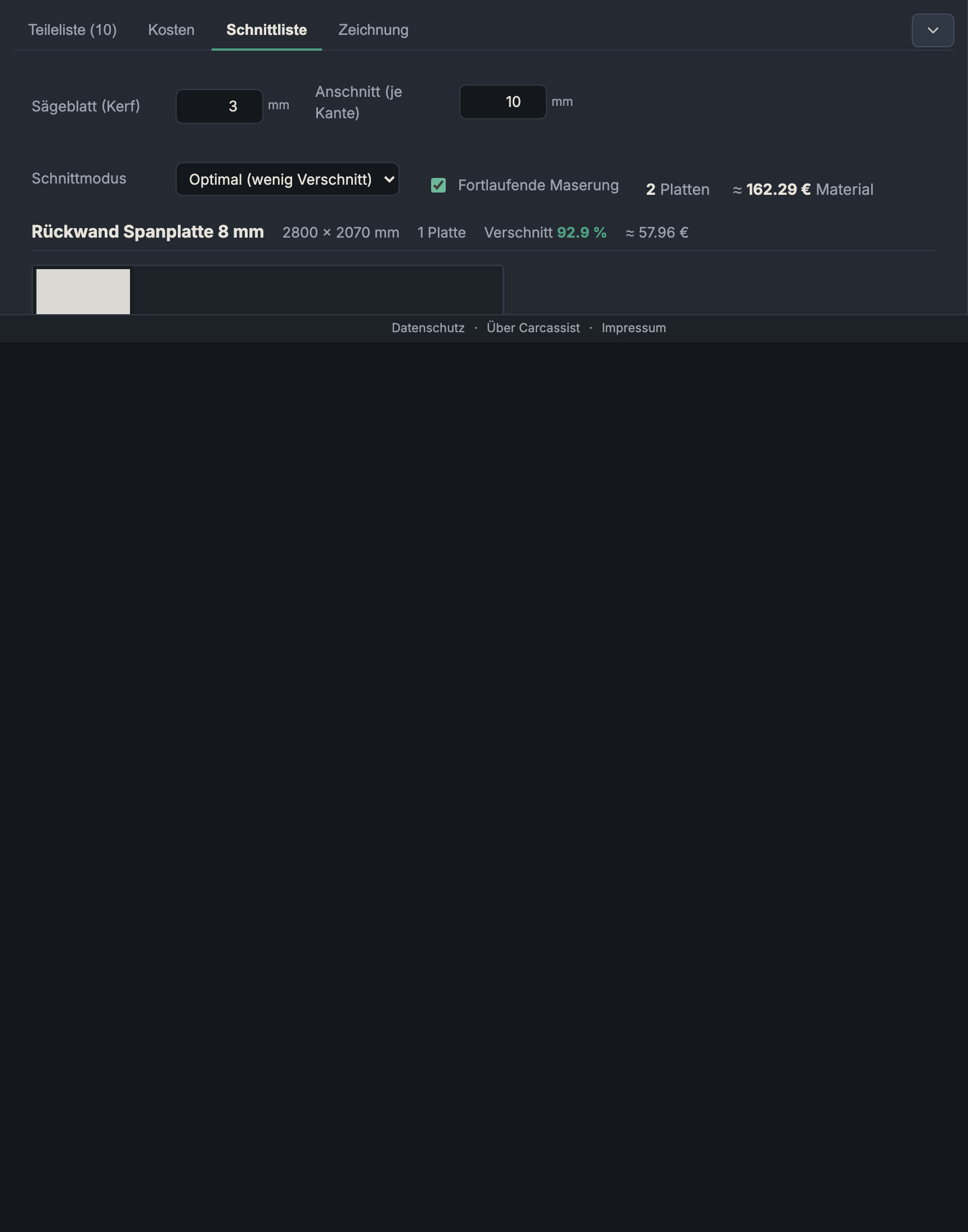
Parts on a material with grain are drawn with grain stripes and never rotated (the running direction is preserved). Since they are not rotated, the stripes always run along the sheet length. A dashed brown outline marks a continuous-grain panel.
Waste & offcut compaction
- Waste % per material:
1 − part area / sheet area. - After nesting the app compacts each sheet: the parts are "pushed together" towards the top/left, so the remainder ends up in one contiguous offcut rather than in slivers on both sides — the leftover piece is thus preserved as a usable offcut sheet. Compaction never changes the sheet count or the waste, and only happens if the result stays overlap-free and guillotine-cuttable.
- The optimisation rates layouts in this order: (1) sheet count (the real material consumption), (2) empty area on the non-last sheets (gathers the waste on the last sheet into one large remainder), (3) number of distinct cut edges as a pure tiebreaker (cleanliness).
Strip cutting

In strip mode the parts lie in full lengthwise strips — visible from the continuous rip bands.
Sawing plan & cut preview
- Sawing plan — N cuts: Under each sheet an ordered cut list expands: per cut the direction (horizontal/vertical), position in mm and the range it runs over. Horizontal cuts (rows/strips) come first.
- Cut preview: A button opens an interactive preview — click a piece to see the next cuts on it (step by step to the finished part).
- Unplaceable parts: Parts that don't fit on any sheet of this size (too large) are listed with a warning and dimensions instead of being silently dropped.
Drawing

Scaled technical drawings: an overview/cover page (overall dimensions, carcasses, sheets, parts, positions; with a clamp-box top the hole grid shows as a dot pattern on skin, ends and strips) and scaled individual-part drawings with dimensioning, grain direction, drilling patterns (grid, first hole, rows) and depths. Export: Print / PDF (multi-page, not clipped to the first page) and DXF parts + sheets (CNC) — one zip, the same button on the cut-list and the drawing tab, with two folders:
| Item | What is in it | For whom |
|---|---|---|
teileliste.csv |
one row per DXF: Pos, file, part, material, size, grain, edges, quantity, part ID | the estimator – the Pos number is also in the file name |
README.txt |
folders, layer legend, view convention, what the DXFs do not carry | whoever imports the files |
parts/<material>/<pos>_<module>_<part>.dxf |
one file per part: outline, holes with diameter and depth, grooves, slots as layers. Module = carcass (plus drawer), worktop or plinth; identical parts are one file, the CSV's "Used in" column says where they go | the shop nests on its own machine |
sheets/<material>/Platte_<n>.dxf |
one file per nested sheet with every part at its position, operations rotated with it, the blank's boundary (layer SHEET, cyan) and a label per part (layer LABEL) | the sheet is machined 1:1 as the cut list shows it |
The drawn face is always the one carrying the most operations (for sides the
inside). Operations from the opposite face carry the layer suffix _BACK,
bores into an edge _EDGE, so a blind bore never ends up on the wrong side.
The dog-hole chamfer is a circle at r + chamfer width on layer CHAMFER_C<width>.
Two checkboxes next to the tabs decide what goes into the DXF: edge bores
(_EDGE; off by default, they need horizontal boring) and joinery bores
(dowel, Domino, biscuit in the faces; on by default). Whatever is left out is
stated in the README.
The sheets/ files follow the nesting settings currently chosen on the
cut-list tab (optimal / strip, continuous grain).
Next: 3D view