Overview — what Carcassist is and how to work with it
Carcassist is a parametric carcass and furniture planner for the browser (carcassist.com). You describe a cabinet via its dimensions and its construction; from that the app computes the finished piece of furniture in real time: a 3D model, a parts list (bill of materials with dimensions, grain and edges), a material and cost list, a hardware list, an optimized saw plan (cut list) and scale technical drawings. Everything can be exported as a CAD/3D file or CSV and shared via link.
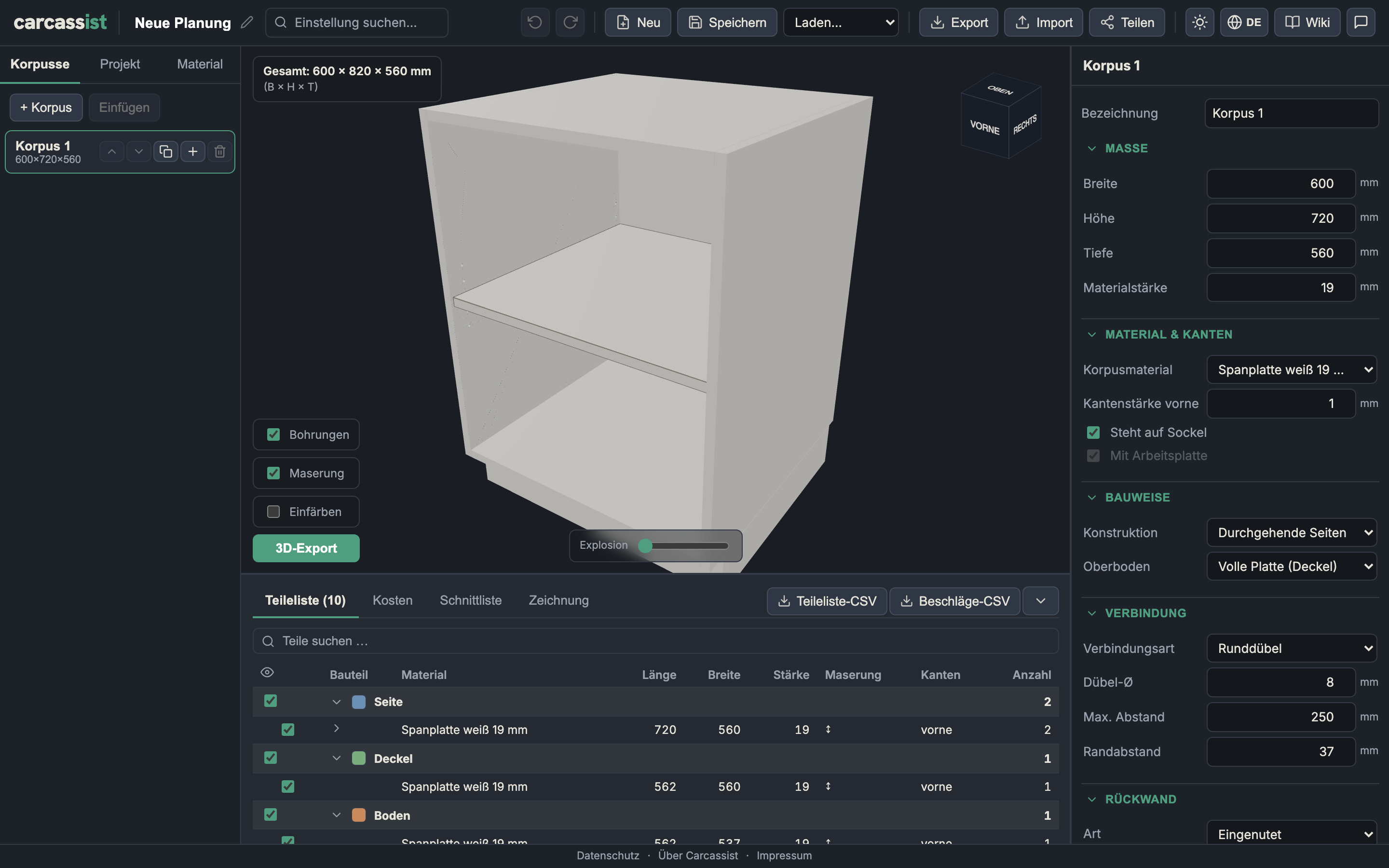
The workflow
The app is a loop of four steps that you run through as often as you like:
- Configure the carcass — in the inspector (right sidebar) you set dimensions, material, construction, joinery, back panel, front/compartments, shelves and drilling. Every change takes effect immediately.
- View in 3D — the middle window shows the carcass live. You can rotate it, click individual parts, show grain and drilling, color parts by role and "explode" the furniture.
- Check cut list / lists — the bottom bar shows the parts list, costs, cut list (saw plan) and drawing. Here you check cutting, waste and hardware.
- Export / share — STEP/STL/Collada/JSON export or a share link.
The screen (desktop)
| Area | Contents |
|---|---|
| Header (toolbar) | Project name, undo/redo, new, save, load, export/import (JSON), share, light/dark theme, language (DE/EN), report error |
| Left sidebar | Three tabs: Carcasses (list of all carcasses in the project), Project (plinth, worktop, placement), Material (material catalog) |
| Center | 3D view on top, below it the cut list/lists (adjustable height, collapsible) |
| Right sidebar | The inspector for the selected carcass — the component groups that this wiki explains page by page |
On narrow devices (< 900 px) the app is rebuilt into a mobile view with a navigation bar at the bottom (3D · Component · Project · Material · List). Content and options are identical, just arranged differently.
Multiple carcasses, one project
A project can contain multiple carcasses side by side in a run (e.g. a kitchen run). Via the Carcasses list you create new ones (via wizard, see New-carcass wizard), duplicate, copy/paste, move and delete them. In the Project tab you control what affects the whole run: the plinth, the worktop, the gap between carcasses and the joint clearance for the export (see Plinth & Worktop).
Saving, sharing, privacy
- Your plan is saved automatically in the browser (localStorage) and additionally server-side under a project ID that appears in the address bar.
- Save/Load stores named plans locally; Export/Import (JSON) writes/reads a project file.
- Share creates a link through which someone else opens exactly your project.
- Fonts and counter/donation widgets are embedded in a privacy-friendly way (no Google Fonts CDN). Imprint and privacy policy are reachable from every view.
How this wiki is structured
Each page mirrors one group of the inspector or one tab of the app. Each option is explained following the same pattern:
- What it does — the concrete effect in the model and in the lists.
- When to use it — the typical situation in furniture making.
- Pros & cons — so you make a deliberate choice.
The exact labels correspond 1:1 to the German interface. Value ranges (min/max) and default values come directly from the code and are given along with them.
Next, on to the first component group: Dimensions.