3D View
The centre window shows the piece of furniture as a 3D model that reacts live to every change. You can rotate/zoom it with the mouse, click individual parts, and control the display via the toggles (bottom left, in the slide-out menu on mobile). The top left always shows the overall dimensions (W × H × D).
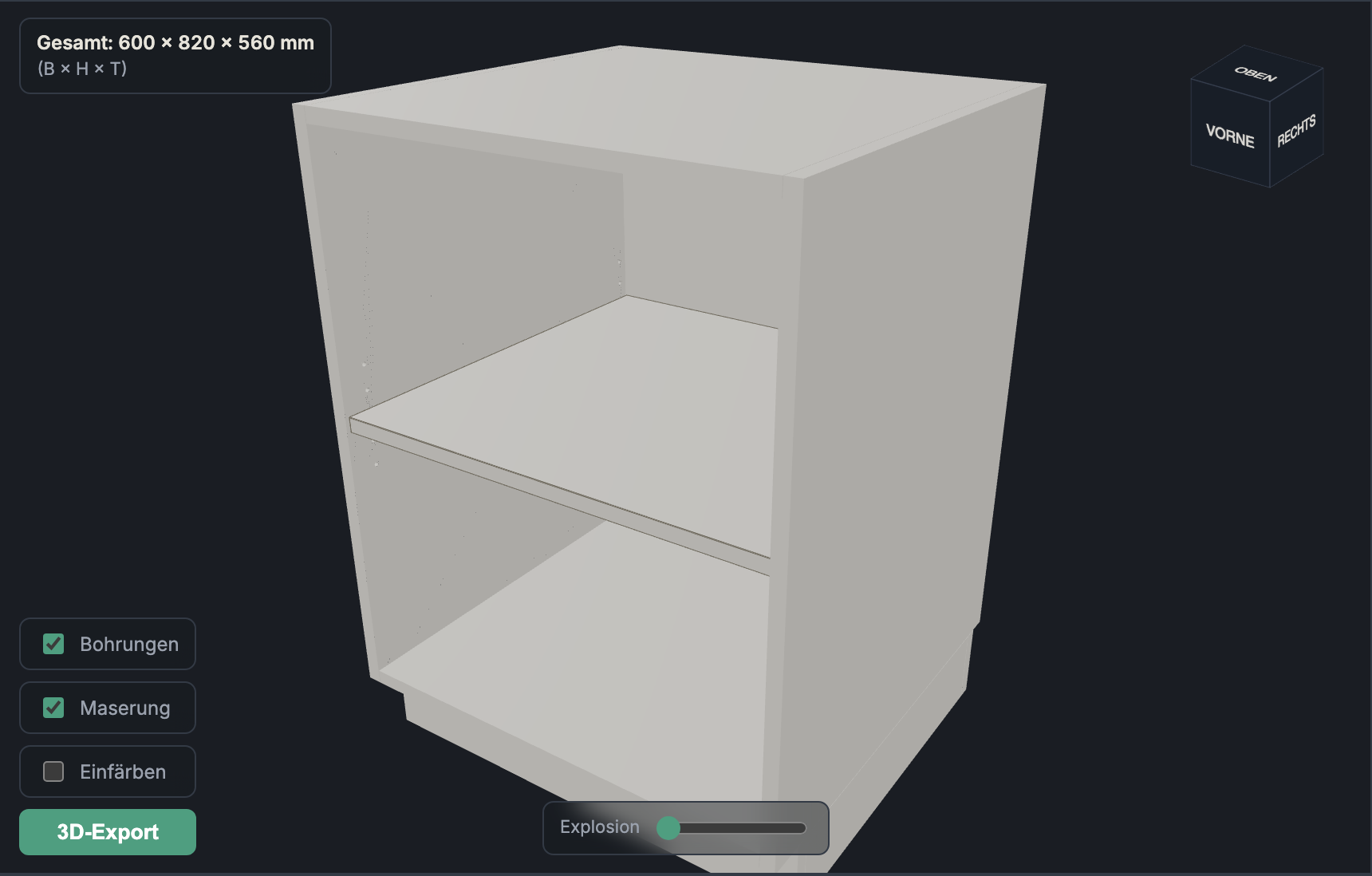
Clicking a part (part card)
Clicking a part opens its part card: dimensions (L × W × T), grain, edge banding and machining/holes — plus "Hide" to take the part out of the scene (kept in sync with the visibility in the parts list).
The view toggles
Holes
- What it does: Shows/hides all holes — hinge cups, System 32 rows, shelf pins, handle and runner holes.
- When to use it: For checking the drilling patterns; turn it off again to tidy up the view.
Grain
- What it does: Draws the grain direction on parts made from material with grain.
- When to use it: To check that the run direction is correct (e.g. with continuous grain).
Colour (by role)
- What it does: Colours each part by its role (side, bottom, door …) instead of by material colour. When colouring is active, a "Cycle colours" button appears (new palette) — the role colours are shared with the colour swatches in the parts list.
- When to use it: To tell part types apart quickly and to match the model against the list.
Explosion
- What it does: A slider that pulls the parts apart ("exploded view", 0 to 1.5).
- When to use it: To show the internal structure, joints and the position of the parts — good for assembly/explanatory images.
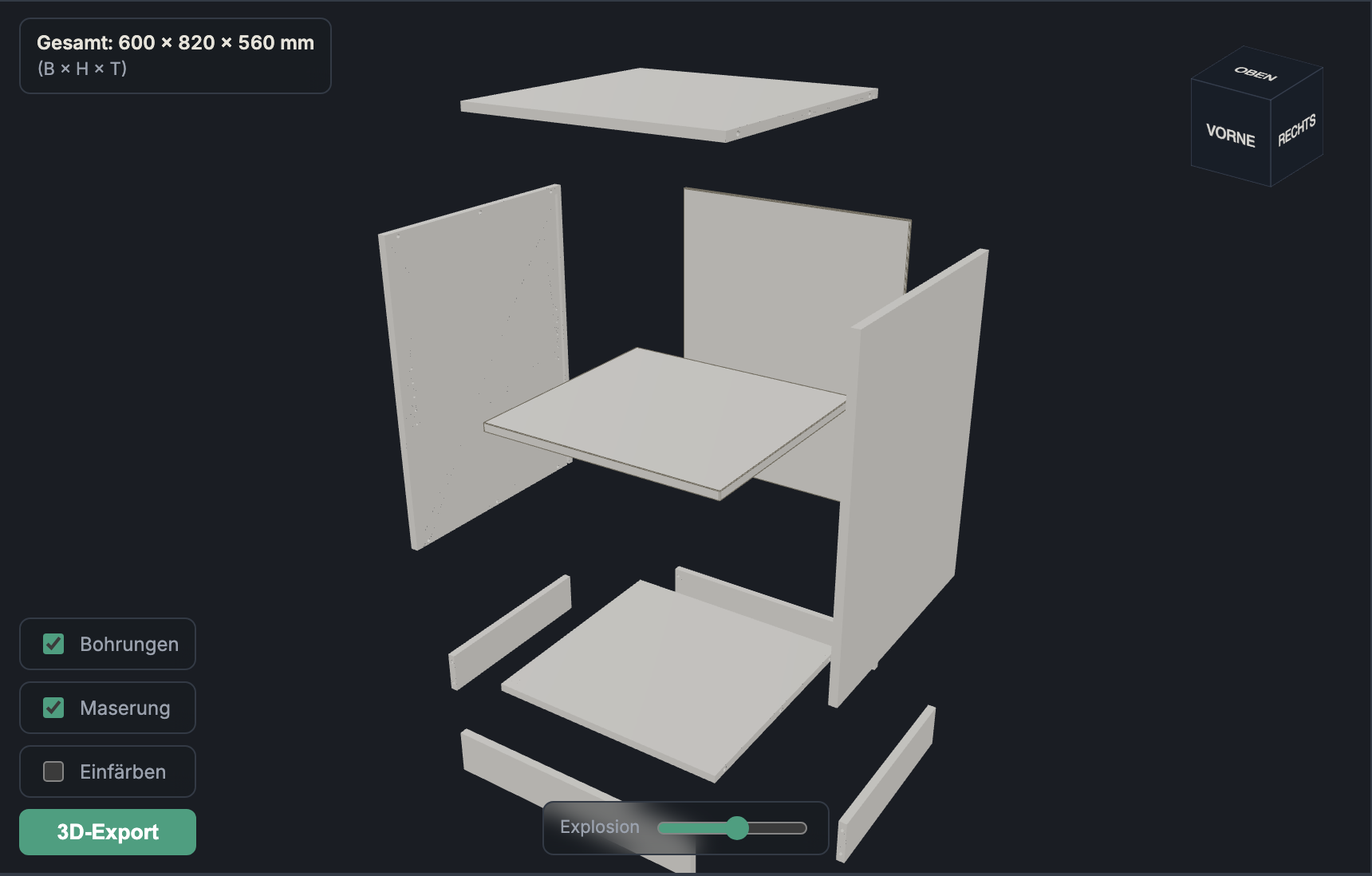
Other controls in the window
- "… hidden — show all": appears when parts are hidden; resets the visibility.
- 3D export button: opens the export menu (STEP/STL/Collada) — see Export & Sharing.
- Navigation cube (top right) for quickly aligning to a standard view (Right/Left/Top/Bottom/Front/Back).
Next: Export & Sharing